




1. Introduction: Real-World Experience Beyond Spec Sheet Myths
Fast cellular connectivity is essential whether you are navigating a new city, working remotely, or streaming high-definition content. However, mobile data bottlenecks, high latency, and sudden signal drops can turn even the most premium smartphone into a frustrating experience.
- 1. Introduction: Real-World Experience Beyond Spec Sheet Myths
- 2. Real-World Case Study: US Variants (U Models) vs. Global Variants (B Models)
- 3. Hardware vs. Software: What Actually Controls Your Mobile Speed?
- 4. Step-by-Step Guide to Fix Slow Mobile Data Speed
- Step 1: Clean and Inspect Your Physical SIM Card
- Step 2: Reconfigure and Reset APN Settings
- Step 3: Toggle Airplane Mode to Refresh Cell Towers
- Step 4: Reset Network Settings
- 5. Pro Tip: Check Band Configurations Before Purchasing
Recently, while traveling internationally, I ran into a peculiar network issue. I acquired an AT&T-branded smartphone from Australia. Although the device was fully carrier-unlocked and accepted local SIM cards, it was still throttled by carrier-level software configurations. The phone’s default network profile was built strictly for AT&T’s specific frequency bands rather than global network standards. As a result, when connected to local networks, the data speeds were severely restricted, and connection drops were frequent.
If you want to fix slow mobile data speed and understand why your smartphone struggles with network stability, this complete hands-on guide covers everything from hardware limitations to advanced APN optimization.
Related Reading: For more hands-on smartphone comparisons, check out our detailed guide onSamsung vs. iPhone: The Ultimate Real-World Comparison Beyond the Spec Sheet.
2. Real-World Case Study: US Variants (U Models) vs. Global Variants (B Models)
When purchasing high-end flagship smartphones like the Samsung Galaxy Ultra series or OnePlus devices, many users overlook regional model variations—specifically US carrier variants (U/U1 models) versus Global/International variants (B models).
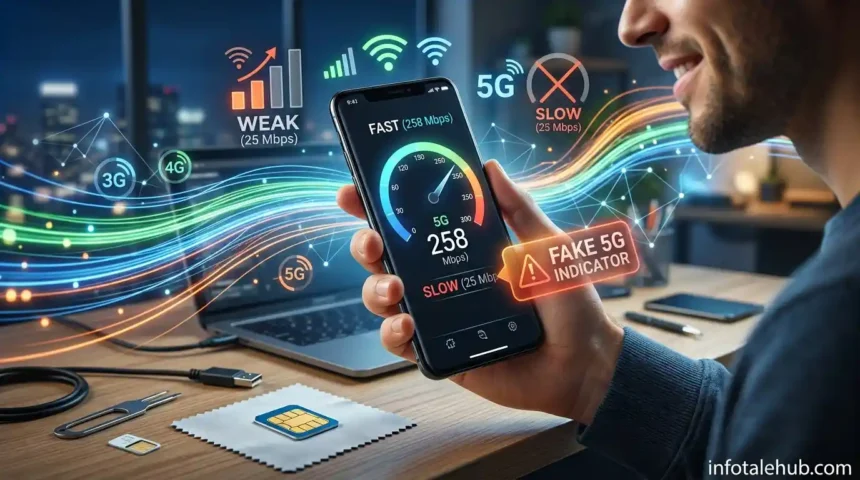
During side-by-side speed tests between a US variant (XAA model) and a Global/Chinese variant of the Galaxy S25 Ultra under the exact same 5G cellular network conditions, the performance gap was staggering:
- US Variant (U Model): Throttled at approximately 25 Mbps download and 25 Mbps upload.
- Global/Chinese Variant (B Model): Reached an astonishing 258 Mbps download and 40–50 Mbps upload.
+------------------------------------+-----------------------+---------------------+
| Smartphone Model Variant           | Download Speed (Mbps) | Upload Speed (Mbps) |
+------------------------------------+-----------------------+---------------------+
| US Variant (U Model / AT&T / XAA)  | ~25 Mbps              | ~25 Mbps            |
| Global / International (B Model)   | ~258 Mbps             | ~40-50 Mbps         |
+------------------------------------+-----------------------+---------------------+
The “Fake 5G” Trap on Carrier-Locked Devices
A major hands-on realization from this testing is that the 5G icon on many carrier-locked or carrier-branded devices is often purely cosmetic outside their native region. A carrier-locked device’s 5G often performs significantly worse than a unlocked device running on a solid 4G+ (LTE Advanced) network. These locked devices struggle to aggregate local bands outside their domestic towers, resulting in severe network throttling.
3. Hardware vs. Software: What Actually Controls Your Mobile Speed?
Understanding how cellular connectivity works is key to fixing data throttling issues. As a golden rule for mobile tech: Hardware controls 80% of your network performance, while software and settings account for the remaining 20%.
1. The 80% Hardware & Baseband Factor
If your phone’s internal modem and chipset do not support local cellular frequency bands (3G, 4G LTE, or 5G Sub-6GHz), no software tweak or APN setting can magically create high-speed data.
2. The 20% Software & APN Optimization Role
Settings and Access Point Names (APNs) ensure your data traffic is routed correctly through your carrier’s gateway. If your APN profile is misconfigured:
- Your phone may fail to utilize your primary high-speed data package (e.g., an active 20GB monthly bundle).
- Instead of using your bundle, the network gateway may route traffic through default billing servers, unexpectedly draining your stored main cash balance.
Samsung vs. Qualcomm: Galaxy S27 Ultra Overheating Crisis
Technical Reference: You can read more about how modem hardware and processor efficiency affect real-world performance in our article onNext-Gen Mobile Processors: Spec Sheet vs Real-World Stability & Performance.
4. Step-by-Step Guide to Fix Slow Mobile Data Speed
If you are experiencing slow browsing speeds or dropped connections, follow these proven troubleshooting steps in order:
Step 1: Clean and Inspect Your Physical SIM Card
Before tweaking software settings, inspect your hardware. Dust, fingerprints, or oxidation on a physical SIM card’s golden contacts cause communication errors between the SIM and the modem stack.
- Eject your SIM card tray.
- Clean the metallic contacts gently using a dry microfiber cloth or a drop of isopropyl alcohol.
- Re-insert the SIM card securely or consider upgrading to an eSIM through your carrier.
Step 2: Reconfigure and Reset APN Settings
To fix slow mobile data speed caused by misconfigured profiles, reset your Access Point Names:
- Open Settings > Connections / Network & Internet > Mobile Networks.
- Tap Access Point Names (APN).
- Tap the three-dot menu icon in the top right and select Reset to Default.
- If speeds remain slow, manually enter your telecom carrier’s official APN settings (available on the official carrier website or GSMArena Phone Specifications).
Step 3: Toggle Airplane Mode to Refresh Cell Towers
Toggling Airplane mode forces your phone to drop stale signal handshakes and reconnect to the nearest cell tower with the strongest signal-to-noise ratio.
- Swipe down the quick settings menu and enable Airplane Mode.
- Wait 10 to 15 seconds.
- Turn Airplane Mode off and let the device re-register on the network.
Step 4: Reset Network Settings
Corrupted network cache files or conflicting VPN profiles can throttle connection throughput.
- Go to Settings > System / General Management > Reset Options.
- Select Reset Network Settings (Note: This will clear saved Wi-Fi and Bluetooth connections).
- Restart your smartphone.
5. Pro Tip: Check Band Configurations Before Purchasing
As expert advice for all mobile users: Always verify your local telecom provider’s active frequency bands (3G, 4G LTE, and 5G) before purchasing imported or carrier-branded smartphones.
By ensuring your device hardware matches the exact frequency bands broadcasted by local cell towers, you eliminate continuous signal scanning, significantly extend battery life, and unlock the true potential of your mobile data package.